TL;DR
- To protect files from an AI agent, plan for recovery first. An agent runs with your permissions, so a limit can shrink a mistake but cannot rule it out. A copy the agent cannot reach turns the mistake into an errand.
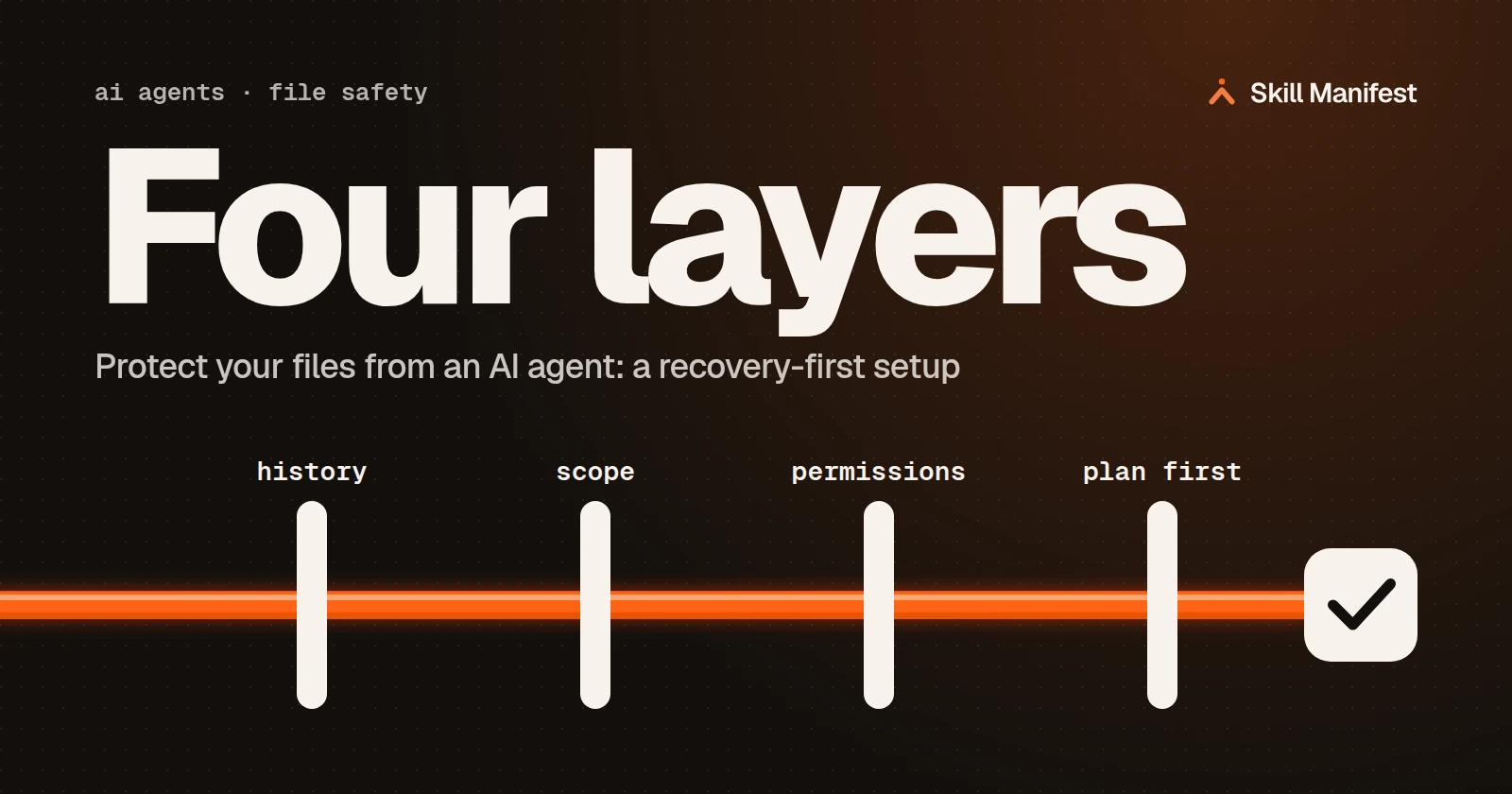
- Four layers, in this order. History (a commit, a copy outside the folder, cloud version history), scope (a worktree, a copy or the sandbox), permissions (deny rules and a delete-blocking hook), and a plan you approve before anything changes.
/rewindundoes file-tool edits, not shell deletes of files Claude never edited. Claude Code tracks the edits its file tools make. A file that only a shell command changed is not tracked.- Practice one restore. In our scratch run,
git restorebrought back 7 of the 9 deleted files. The other 2, an untracked draft and an ignored.env, came back only from a copy outside the folder.
How do you protect files from an AI agent without relying on it being careful?
Assume it will make a mistake, and make the mistake cheap. The reports show why. On 5 November a law professor said on X that an AI assistant had deleted a year of lecture notes and his syllabus while he was at lunch, during a job that was meant to update page numbers. He later wrote that he recovered everything thanks to Dropbox. Everything we know comes from his own post as Dexerto reported it, and the cause is still unclear.
Other reports show where recovery tends to break. TechRadar relayed one developer's account of a cleanup that followed 614 Windows junctions back into live files and removed 48,218 of them in under two minutes. The same report says the repository's stored history was deleted too. The original post is gone, so none of it is independently verified. A GitHub issue from one user says that only 16 of 2,229 deleted source files had ever been committed, which left git with almost nothing to restore.
Each account breaks a different layer. The GitHub issue says the deletes bypassed the Windows Recycle Bin, and Backblaze says terminal deletes on a Mac skip the Trash too. In the TechRadar account, the history went with the files. The professor's story ended well for the opposite reason: a copy existed somewhere else. What the cases share is access. An agent runs commands with the same permissions as the person who started it, so if you can delete it, so can the agent.
The setup below does not depend on the agent being careful. That matches how Claude Code works: permission rules are enforced by Claude Code, not by the model, and instructions in your prompt or CLAUDE.md shape what Claude tries without changing what Claude Code allows. Both halves matter. The rules limit the damage. The copy undoes what the rules miss.
We wrote this against the Claude Code docs and changelog as they stood on 15 November 2026 (the changelog's newest entry was 2.1.325, dated 13 November). Our own runs were plain git and shell commands plus our own hook script, in a scratch folder. We did not run a Claude Code session for this post, so every statement about Claude Code's behavior comes from the docs linked, and says so.
What are the four layers, and what does each one catch?
Think of the layers as rings around your files. The outer rings, plan and permissions, stop a mistake before it lands. Scope limits how much it can touch. The innermost ring, history, is a copy you can restore from when the others miss.
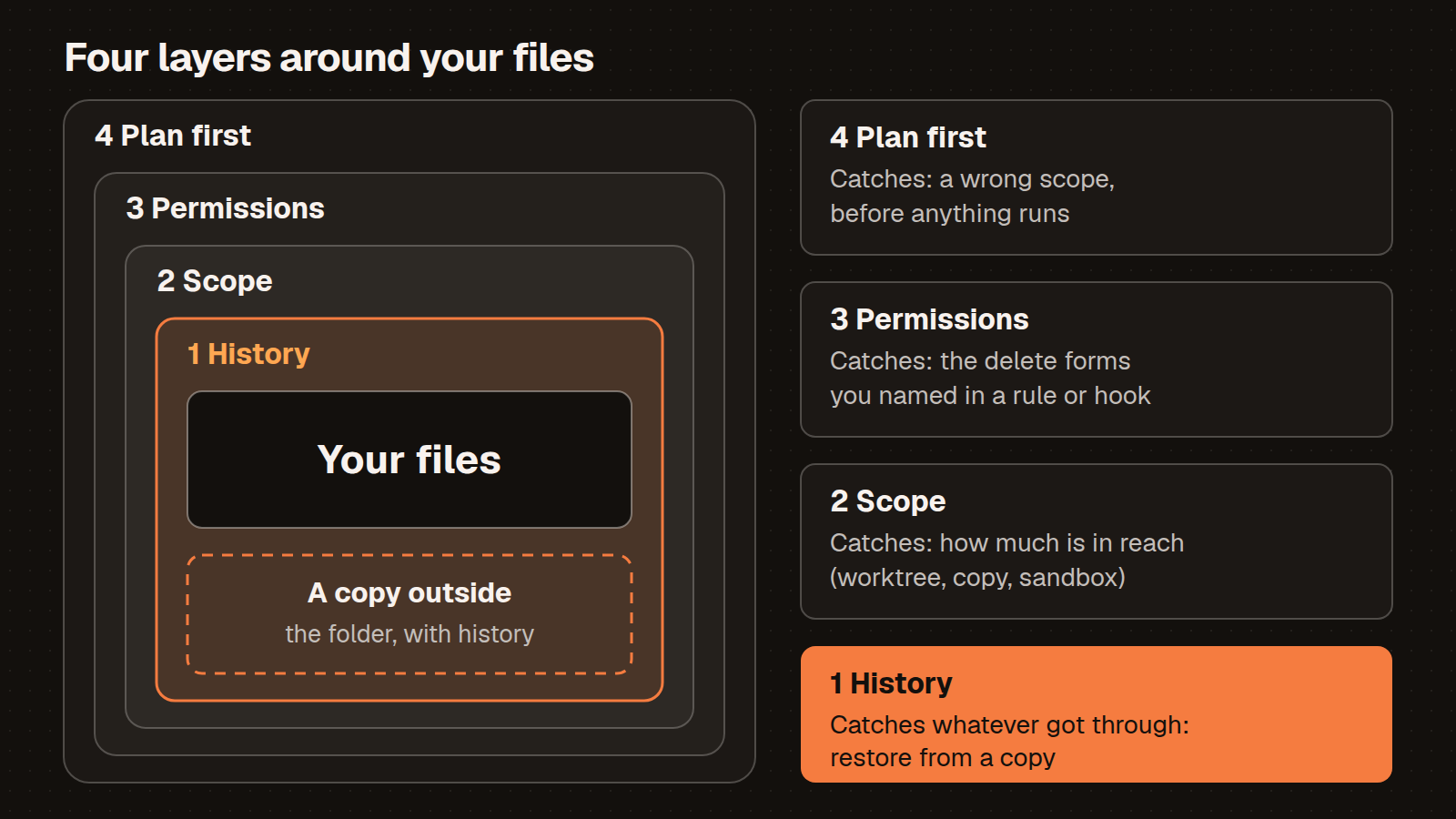
The four rings, from plan first on the outside to history at the center, with what each one catches.
| Layer | What you set up | What it catches | What it lets through |
|---|---|---|---|
| 1. History | A commit, a copy outside the folder, cloud version history | Any delete or overwrite you notice in time | Changes made after the last copy, and copies the agent can reach |
| 2. Scope | A worktree, a copy of the files, the sandbox | The size of the damage: only what is in reach | A worktree does not stop shell writes elsewhere; the sandbox does not cover the file tools |
| 3. Permissions | Deny rules and a hook | The delete forms you named | Other spellings of the same delete, and scripts that delete for themselves |
| 4. Plan first | Plan mode, or a list you approve | A wrong scope, before anything runs | Mistakes after you approve; and sessions where plan mode is not enforced |
Order matters because the layers fail differently. Rules and plans prevent. History recovers. When a rule has a gap, only history helps, so history goes first.
Layer 1, history: how do you keep a copy the agent cannot delete?
Start with the copy, then add history on top. You can do all of this without git, though git makes the first step a single command.
Commit everything. Git protects only what it tracks. git clean removes "files that are not under version control", which is exactly the set no commit can bring back. Before a task, run git status --short. Any line starting ?? is a file git does not know. Add it and commit, or copy it somewhere else.
Keep a copy outside the folder. A copy that sits beside your project can fail the same way the project does, as Digital Applied notes. Backblaze puts the rule plainly: you can only restore files "if a copy exists somewhere the agent couldn't reach." Two copies of different kinds work well:
# A plain copy of the working files, without the .git folder
rsync -a --exclude=.git ./ ../backup/project-copy/

# A mirror of the git history itself, kept outside the project folder
git clone --mirror . ../project-mirror.git
We ran both in a scratch folder. After rm -rf .git, git status answered fatal: not a git repository, and a clone from the mirror brought the history and files back. That is the failure the TechRadar report describes, and the reason the mirror lives outside.
Know how long your cloud folder remembers. A synced folder helps only inside its recovery window, and sync tools mirror changes, so a deletion is a change. Check your plan before you rely on it:
| Service | What the vendor says |
|---|---|
| Dropbox | Version history is 30 days on Basic, Plus and Family; 180 days on Professional, Essentials, Business and Standard; 365 days on Business Plus, Advanced and Enterprise. Previous versions of permanently deleted files cannot be restored. |
| Google Drive | A file in the trash stays 30 days, then it is deleted forever, and emptying the trash deletes it at once. |
| OneDrive | Deleted files can be restored for 30 days on a personal account and 93 days on a work or school account, unless an administrator changed it. |
| Time Machine (Mac) | Hourly backups for 24 hours, daily for the past month, weekly for all earlier months. The oldest are deleted when the backup disk is full. |
If you want one rule to remember, use the 3-2-1 rule from CISA: three copies of an important file, on two kinds of media, with one stored offsite. For an agent task, the practical version is the working copy, a second copy on another disk or service, and the cloud folder's history as the third.
Layer 2, scope: should an agent work in a worktree, a copy or a sandbox?
Give the task a smaller world. An agent cannot delete what is not in reach.
A worktree is a second checkout. In git terms it is a separate working directory with its own files and branch. In Claude Code, claude --worktree fix-numbers creates one under .claude/worktrees/fix-numbers/ on a branch named worktree-fix-numbers, and starts the session there. Because a worktree is a fresh checkout, untracked files such as .env are not present in it unless you list them in a .worktreeinclude file. So a secret you did not copy in is not sitting in the worktree for the session to read or edit.
A worktree is not a fence, though. Claude Code blocks edits from a worktree session that target the main checkout. But its checks do not track which files a shell command writes, so a cp or a redirect into the main folder is not refused by them.
We saw the plain-shell version of this. From inside a linked worktree, rm ../wt-demo/chapter2.md exited with status 0 and the file in the main folder was gone. The home lesson of our field guide puts it in one line: "A worktree is not a security sandbox." A worktree separates branches. It does not confine a process.
If you do not use git, use a copy. Copy only the files the task needs into a new folder, start the session there, and bring back what you approve. The principle is the same: a smaller writable workspace and a recovery copy the agent cannot alter. Adding directories with --add-dir widens the reach, so add them on purpose.
The sandbox is the real fence for shell commands. It is off by default. Turn it on with /sandbox, and shell commands can write only to the working directory, a temp directory and directories you added. It runs on macOS, Linux and WSL2; on native Windows Claude Code runs commands unsandboxed. Two limits to know. It wraps shell commands only, so the built-in file tools follow permission rules instead. And sandboxed commands can still delete your working directory, which is why history sits underneath scope, not above it. The sandbox docs also warn that any approach that mounts your project directory writable can still modify that code.
Since 2.1.314 there is one more setting: permissions.blockWritesOutsideWorkingDirectories makes Write, Edit and NotebookEdit refuse paths outside the working directories in every permission mode. The docs say it does not limit shell commands, so pair it with the sandbox.
Layer 3, permissions: how do you stop deletes with deny rules and a hook?
A deny rule matches text, not intent. Keep that in mind through this whole layer.
Deny rules. Rules are checked in order: deny, then ask, then allow, and the first match wins. Deny rules also block in every mode, including bypassPermissions. Put this in .claude/settings.json for a project that holds files you care about:
{
  "permissions": {
    "deny": [
      "Bash(rm *)",
      "Bash(rmdir *)",
      "Bash(git clean *)",
      "Bash(git reset --hard *)",
      "Edit(/originals/**)"
    ]
  }
}
Edit(/originals/**) guards a folder called originals at the project root against every built-in file-editing tool. The same Bash(...) rules work as a one-off with claude --disallowedTools, which our claude --help on 2.1.319 lists.
Here is the limit. A Bash rule matches the command text Claude writes. The docs say it is not a security boundary around the program and give an example: Bash(rm *) stops rm -rf build/ but does not stop /bin/rm -rf build/ or bash -c 'rm -rf build/'. File rules have the same kind of gap. The Read and Edit deny rules do not apply to a Python or Node script that opens files itself.
Claude Code also has a built-in check for rm and rmdir, but its protected targets are mostly broad: they include the filesystem root, your home directory, and your working directory and its parents. A folder inside your working directory, such as notes/, is not on that list. And in acceptEdits mode, rm and rmdir are auto-approved for paths inside the working directory. The built-in check is a net for catastrophes, not for your lecture notes.
A hook that blocks deletes. A PreToolUse hook runs before a tool call. If it exits with code 2, Claude Code blocks the call. A hook that exits 2 stops the call before permission rules are evaluated, and PreToolUse hooks fire before any permission-mode check, so switching modes does not switch the hook off. This is the script we wrote, saved as .claude/hooks/block-deletes.sh:
#!/bin/bash
# PreToolUse hook for the Bash tool: stop commands that delete or discard files.
cmd=$(jq -r '.tool_input.command // empty')

pattern='(^|[;&|(`"'"'"'[:space:]])(/[a-z/]*/)?(rm|rmdir|unlink|shred)([[:space:]]|$)'
pattern="$pattern"'|find[[:space:]].*-delete|git[[:space:]]+clean|git[[:space:]]+reset[[:space:]]+--hard'

if printf '%s' "$cmd" | grep -Eq "$pattern"; then
  echo "Blocked: this command deletes or discards files. Move them into ./_trash/ instead, then tell the user what you moved." >&2
  exit 2
fi
exit 0
Register it, and make it executable with chmod +x:
{
  "hooks": {
    "PreToolUse": [
      {
        "matcher": "Bash",
        "hooks": [
          { "type": "command", "command": "\"$CLAUDE_PROJECT_DIR\"/.claude/hooks/block-deletes.sh" }
        ]
      }
    ]
  }
}
We ran the script by hand, feeding it example Bash input as JSON. It exited 2 on these six delete forms: rm -rf notes, /bin/rm -rf notes, bash -c 'rm -rf notes', find . -name '*.md' -delete, git clean -fd and git reset --hard HEAD~3. It exited 0 on ls notes, git status --short and a mv into _trash/.
It also let two things through: python3 -c "import shutil; shutil.rmtree('notes')" and : > notes/class-1.md, which empties a file. And it blocked grep -n "rm " README.md by mistake. A text-matching hook catches spellings, not intent. It slows the agent down and points it at _trash/. Treat it as one layer, and let history do the real work. We did not run it inside a Claude Code session.
The message in the hook matters. In the docs' own example, Claude receives feedback explaining why the edit was blocked, so it can adjust. A message that names the safe alternative (move it to _trash/) gives it something to do next.
Start from a catalog hook. You do not have to write the hook yourself. Searching our catalog for a Claude Code hook that blocks rm -rf returns reviewed entries, including cc-safety-net, security/dangerous-command-blocker and git-guardrails-claude-code. Each entry shows its source, license, pinned revision and install facts from a static scan. "Reviewed" means a person, with AI help, checked the record against the file at that revision. Read the script before you install it, as each record asks. Our post on what a skill can do on your machine shows what to look for.
Layer 4, plan first: how do you see the list of files before anything changes?
Before the agent acts, make it show you the scope. Claude Code has a mode for this. Plan mode tells Claude to research and propose changes without making them. Start it with claude --permission-mode plan or press Shift+Tab, and edits stay blocked until you approve the plan.
One catch, straight from the docs: in interactive terminal sessions where bypass permissions is available, Claude Code does not enforce plan mode's blocks. Claude is still instructed to plan without editing, but an edit or shell command it attempts runs without prompting. If you start sessions with the bypass flag, plan mode is a request, not a lock. An unattended run has nobody to approve a plan at all, so it leans entirely on the deny rules, the hook, the sandbox and your outside copy. Our post on headless and scheduled runs covers running Claude Code with no one watching.
So pair it with a prompt that asks for the list, and a rule that holds:
Before you change anything, list every file you plan to edit, move or delete,
one per line, with the reason. Do not delete anything: move it to _trash/ instead.
Wait for my OK.
Read the list for three things: a count that is larger than the task needs, any path outside the folder you named, and any wildcard. The user in the GitHub issue above says the trouble began with a request to clean up "scaffolding", which the agent read as every file with one extension. A written list is where that reading becomes visible.
How do you undo AI changes with /rewind, and what does it not cover?
Checkpointing is Claude Code's built-in undo. Every prompt you send that starts a turn creates a checkpoint, and /rewind (alias /undo, or Esc twice on an empty prompt) opens a menu to restore code, conversation or both. Snapshots cover the 100 most recent checkpoints in a session, and the retention sweep removes a session's snapshots about 30 days after it last saved one, unless you raise cleanupPeriodDays.
Here is the boundary:
| What happened | Does /rewind restore it? |
|---|---|
| Claude edited a file with its file tools | Yes |
| A shell command later changed a file Claude had edited | Yes, /rewind undoes that change too |
A shell command (rm, mv, sed -i) changed a file Claude had not edited | No: a file that only Bash commands changed isn't tracked |
| Edits by other subagents | Only files Claude had already edited in your conversation |
| Edits you made yourself, or another session made | Normally not captured |
| Symlinked or hard-linked files | Skipped on restore, with a warning |
The sed -i row changed recently. Since 2.1.309 (22 October 2026), sed -i gets the standard Bash prompt and runs as written, and like other Bash edits it is no longer restored by /rewind. The docs sum up the division of labor: checkpoints "work alongside git rather than replacing it", and they are built for quick, session-level recovery. Use /rewind for a bad edit. Use git, and your copy, for a delete.
How do you check the result and practice a restore?
A backup you never restored is a hope. Run this once, in a throwaway folder, before you need it. This is the drill we ran.
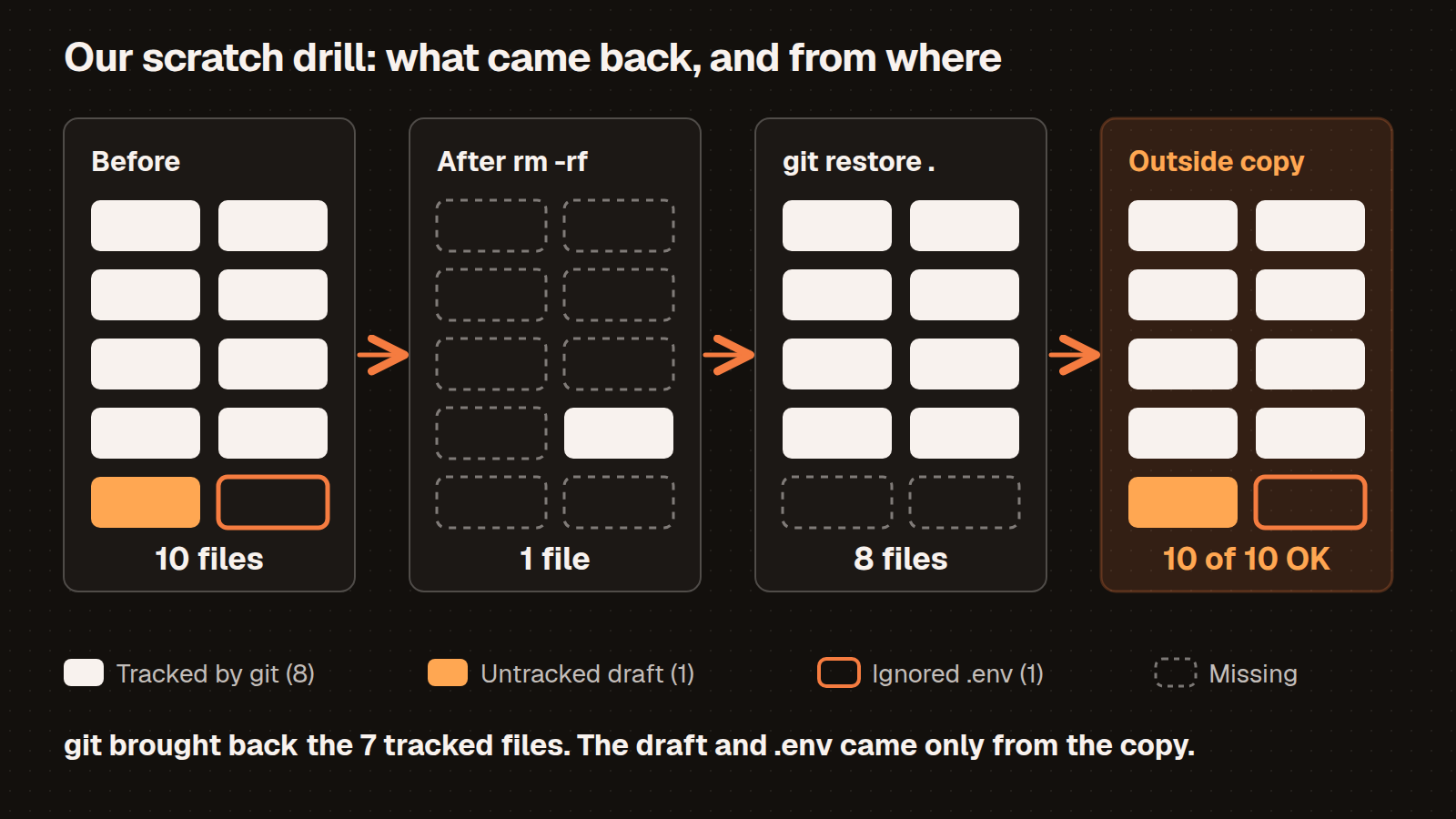
Our scratch run: git restored the 7 tracked files; the untracked draft and the ignored .env came back only from the outside copy.
- Make a folder with ten files: some tracked, one untracked draft in
drafts/, one ignored (.env). Commit. - Take a copy as in Layer 1, and write a checksum list:
find . -path ./.git -prune -o -type f -print0 | sort -z | xargs -0 sha256sum > ../before.sha256. Any checksum tool works. - Make the mistake:
rm -rf notes drafts syllabus.md .env. Count what is left. We had 1 file of 10. - See what git shows.
git status --shortlisted the 7 deleted tracked files withD. It said nothing about the draft or.env: untracked and ignored files vanish without a trace in git's output. That is why the count and the checksum list matter. - Restore in order.
git restore .brought back 7 files, so 8 were on disk. Thenrsync -a --ignore-existing ../backup/project-copy/ ./filled in the rest without overwriting any file already on disk. - Prove it.
sha256sum -c ../before.sha256should printOKfor every line. Ours printed 10 of 10.
Better still, restore into a separate folder first, compare, then replace. After any real task, the same three checks apply. Run git diff --stat to see how many files changed. Count the files before and after. And skim the list for anything you did not expect to move. For a second reader on the diff itself, see how to set up Claude Code code review.
How do you recover files an agent already deleted?
Stop first. The advice from Digital Applied is to stop the agent and its background work before issuing another broad repair command, and not to ask the still-running task to improvise a recovery across the machine. Then work down this list, using the first source that has the file:
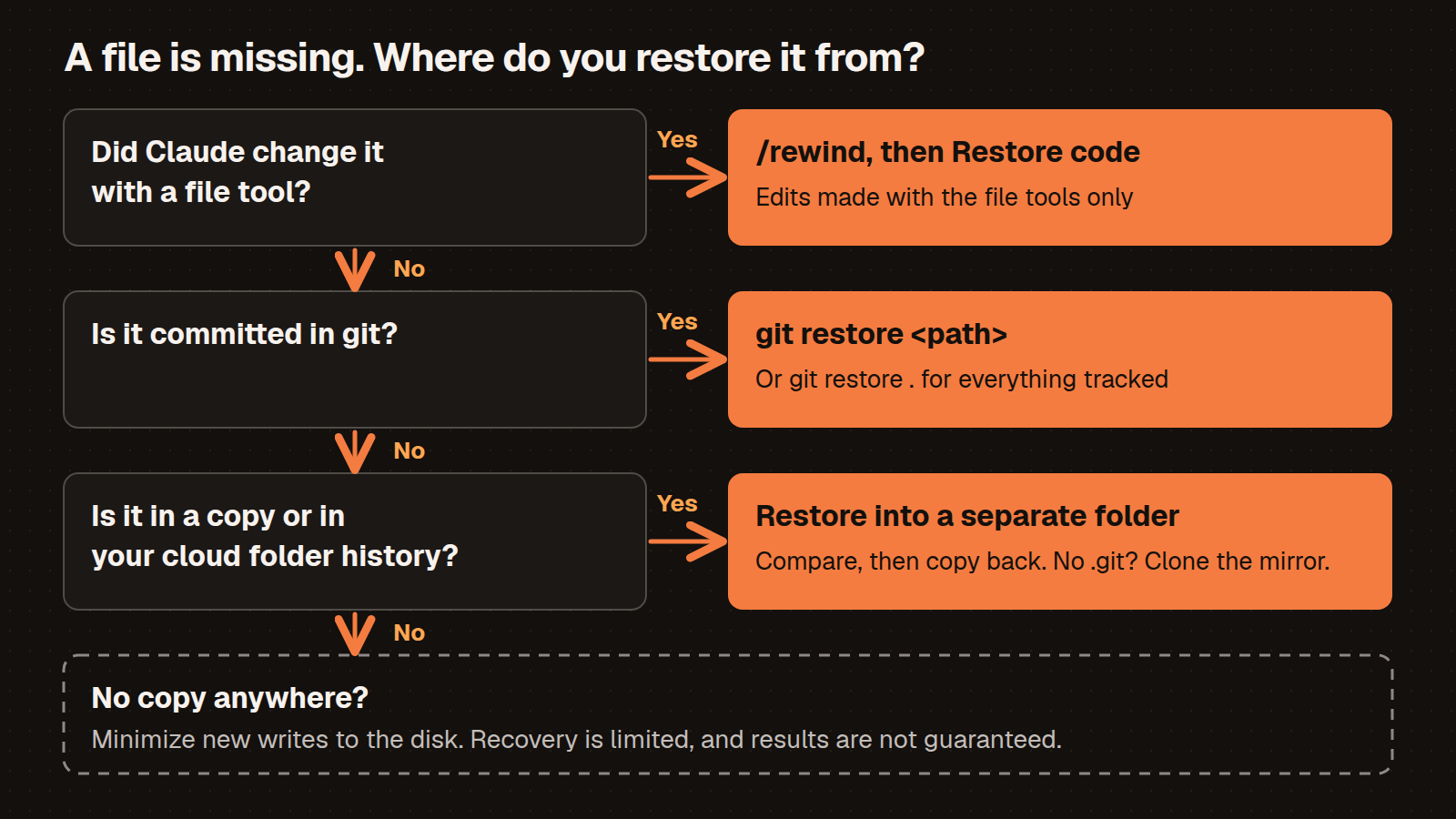
Where to restore from, in the order to try them. Restore into a separate folder first.
- Claude edited it with a file tool:
/rewind, then Restore code. - It is tracked in git:
git restore <path>, orgit restore .for everything. - It was never committed: the cloud folder's deleted-files page or version history, Time Machine, or your outside copy. Do not count on the trash: terminal deletes on a Mac don't go to the Trash, and the GitHub issue says the same of the Windows Recycle Bin.
- The
.gitfolder is gone too: clone from your mirror.
If you have no copy at all, minimize further writes to the affected storage and expect limited, uncertain results. Backblaze says without a backup your options are limited and results are not guaranteed. That is the case for doing Layer 1 today.
Linux users with Btrfs can add filesystem snapshots on top. One engineer's write-up notes that a Btrfs snapshot is instantaneous but that snapshots on the same disk die with it, so it adds external backups with restic.
FAQ
Does /rewind bring back files Claude deleted with rm?
Not if only a shell command touched them. The docs say a file that only Bash commands changed is not tracked and stays as it is, and to use version control such as git to revert it. /rewind covers edits made with Claude's file tools.
Is a git worktree enough to protect my files?
It protects your branch state, not your folders. Claude Code blocks file edits and git commands that target the main checkout from inside a worktree session, but its checks do not follow what a shell command writes. We ran a plain rm from a linked worktree that deleted a file in the main folder. Add a copy outside the folder, and the sandbox for shell commands.
Do deny rules stop an agent from deleting files?
They stop the forms you wrote. Bash(rm *) stops rm -rf build/ but not /bin/rm -rf build/ or bash -c 'rm -rf build/', and file rules do not cover a script that opens files itself. Use deny rules for the common route and the sandbox and your copy for the rest.
Is git alone enough?
No. Git restores what you committed. It cannot restore untracked or ignored files, and one report says the history folder itself was deleted. A commit plus a copy outside the project, with the cloud folder as a third, covers both.
Does this apply to other coding agents?
The first two layers do. Backblaze says the pattern of deleted files shows up across tools and vendors, and the advice on history and scope does not depend on the tool. The deny rules, hook and /rewind details here are specific to Claude Code.
Run the drill before you need it
Pick a throwaway folder, copy it as in Layer 1, delete a file on purpose and restore it. Then run the checksum list and read the result. When it passes, turn the layers into a setup file your project carries.
Sources
- www.dexerto.com/entertainment/professor-returns-from-lunch-to-find-ai-deleted-years-worth-of-lecture-notes-3425652
- www.techradar.com/pro/security/i-broke-something-a-claude-code-ai-agent-deleted-48-000-files-in-just-over-100-seconds-then-apologized-for-doing-so
- github.com/anthropics/claude-code/issues/23913
- www.backblaze.com/blog/?p=113538
- code.claude.com/docs/en/permissions
- git-scm.com/docs/git-clean
- www.digitalapplied.com/blog/stop-ai-coding-agents-deleting-files
- help.dropbox.com/delete-restore/version-history-overview
- support.google.com/drive/answer/14933051
- support.microsoft.com/en-us/office/restore-deleted-files-or-folders-in-onedrive-949ada80-0026-4db3-a953-c99083e6a84f
- support.apple.com/en-us/104984
- www.cisa.gov/sites/default/files/publications/data_backup_options.pdf
- code.claude.com/docs/en/worktrees
- code.claude.com/docs/en/sandboxing
- code.claude.com/docs/en/permission-modes
- code.claude.com/docs/en/sandbox-environments
- code.claude.com/docs/en/changelog
- code.claude.com/docs/en/hooks
- code.claude.com/docs/en/hooks-guide
- code.claude.com/docs/en/checkpointing
- code.claude.com/docs/en/best-practices
- git-scm.com/docs/git-restore
- akitaonrails.com/en/2026/07/11/how-to-protect-yourself-from-agents-deleting-your-stuff